AI Development with Cursor and a few MCP servers
Overview
Here is a short how-to to get going with cursor and a few MCP servers that can help an AI dev workflow.
-
Install cursor or other agent driven IDE that has an MCP client.
- Copy the content of cursor_user_rules to Cursor->Settings->Cursor settings->Rules. Adjust as you see fit :)
- Make sure to user agent mode in your cursor: cmd+I/ctrl+I
- To help the agent get context about your project create cursor rules under .cursor/rules) Many seem to use https://www.codeguide.dev/ for that but you can also ask your agent to help you.
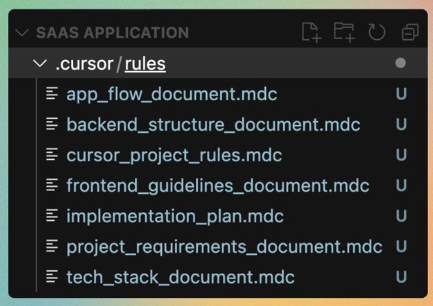
-
Recommended MCP servers
- Take the mcp.json file and insert under cursor settings - MCP (Cursor restart needed sometimes when changeing MCP settings)
- mcp-atlassian - Lets your agent read and create JIRA tickets and more for you.
- Prerequisites: uv
- You only need to create a JIRA API token https://id.atlassian.com/manage-profile/security/api-tokens
- Figma-Context-MCP - Lets your agent get Figma data and download Figma images.
- Prerequisites: Node.js installed (for npx command)
- Create a personal access token under account - security.
- Select in Figma what you want to work with, right click and take copy as link to selection and paste as context for your agent
- BrowserToolsMCP - Provides browser interactions and debugging capabilities for your AI agent like console logs and network logs and the ability to take screenshots for the AI agent to see how the code looks. A bit more involved to install: Full installation instructions or short:
- Also here Node.js as prerequisite...
- Install the chrome extension
- Run the Browser tools server:
npx @agentdeskai/browser-tools-server@1.2.0 - Go to dev tools in chrome on a webpage (F12) go to far right top navigation to tab BrowserToolsMCP and check allow autopaste to cursor and set the folder to a folder in your project so that curser can see them.
- Test by asking the cursor agent to take a screenshot
-
Once these three MCP servers are up and running you can try:
- Paste a Figma link and ask the agent to create a jira story in project eg: MIB to implement the screen. Ask for form validations and acceptance criteria aso. This can probably be improved by providing templates and more.
- Ask for your JIRA tickets. Maybe ask to implement one.
- Ask to implement a figma link to a screen. Cursor will try and then take a screenshot and compare with Figma (unclear if the agent actually see the figma image or just getting data. Can help with a screen shot from figma as context.)