Vanta Security Scanning
Overview
Majority uses Vanta to as a tool to keep track of security vulnerabilities in the system. The reports from Vanta are also used for compliance (i.e. in SOC reports), and it is important that any vulnerabilities detected are fixed before deadline.
Vanta monitors vulnerabilities in the backend code by fetching container scan results from Microsoft Defender in Azure, which runs a scan on each container pushed to the minoritycr ACR. Only the latest image of each repository is included in the Vanta report, so as soon as a fixed image is pushed and it has been scanned by Microsoft Defender (which happens daily), the status in Vanta should be updated.
Each vulnerability in Vanta has a deadline. We should always fix them before this deadline. If not possible, it's important to document the process in a Jira ticket for tracking and compliance purposes!
How to identify what to fix
The vulnerabilities are listed at Vanta Container Vulnerabiltities. Sometimes it can be tricky to find out what to fix for a specific vulnerability, and unfortunately the UI in Azure is not easy to use.
- In Vanta its possible to see CVE details of the issue.
- To find the corresponding image and suggested fix
- Go to Mcirosoft Defender in the Azure Portal.
- Click Recommendations, expand 'Remediate vulnerabilities', click 'Container registry images should have vulnerability findings resolved (powered by Qualys)'
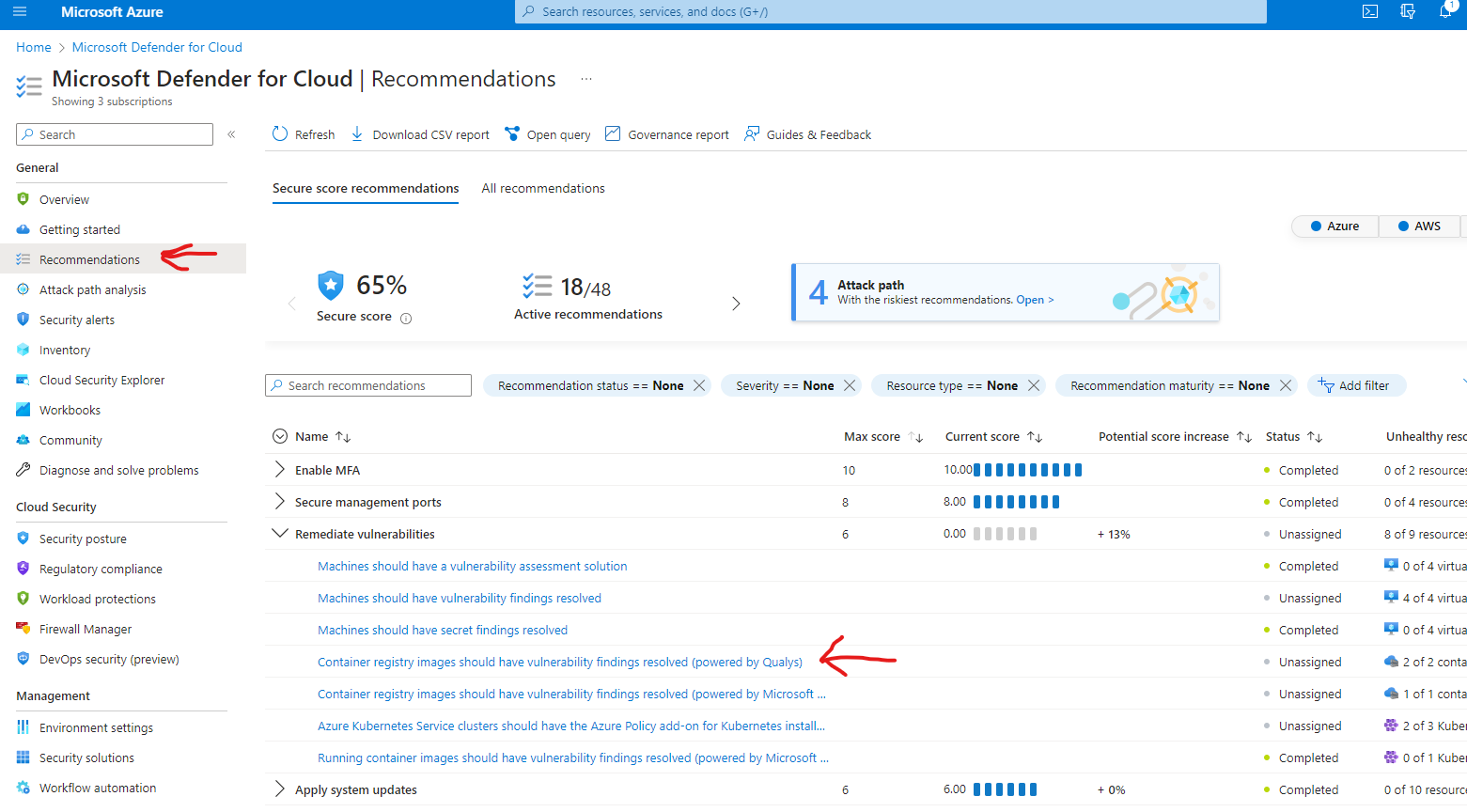
- Expand 'Affected resources', click the minoritycr ACR
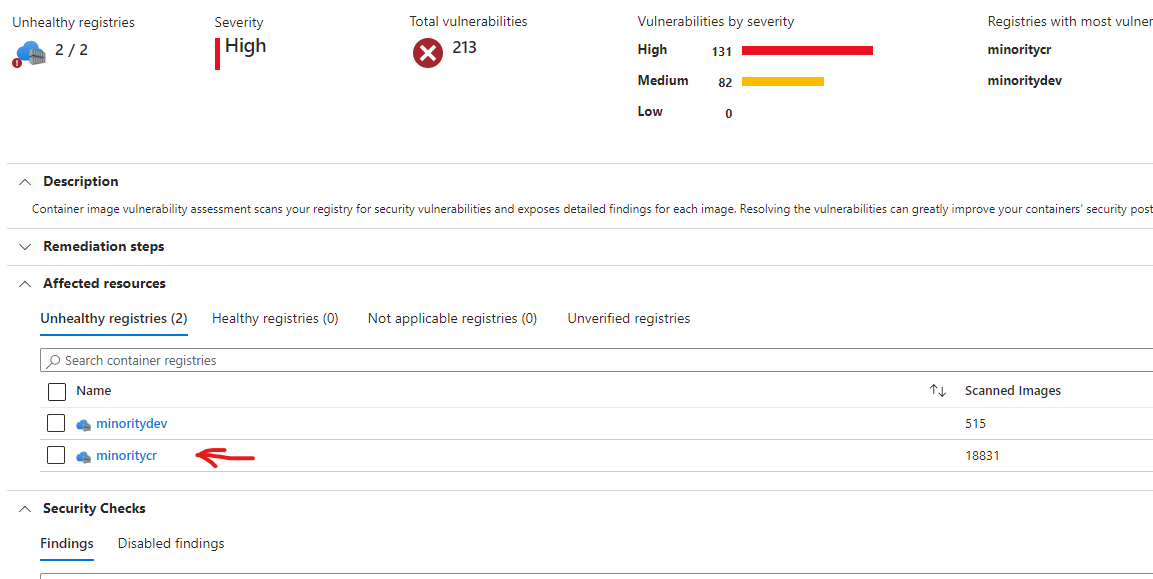
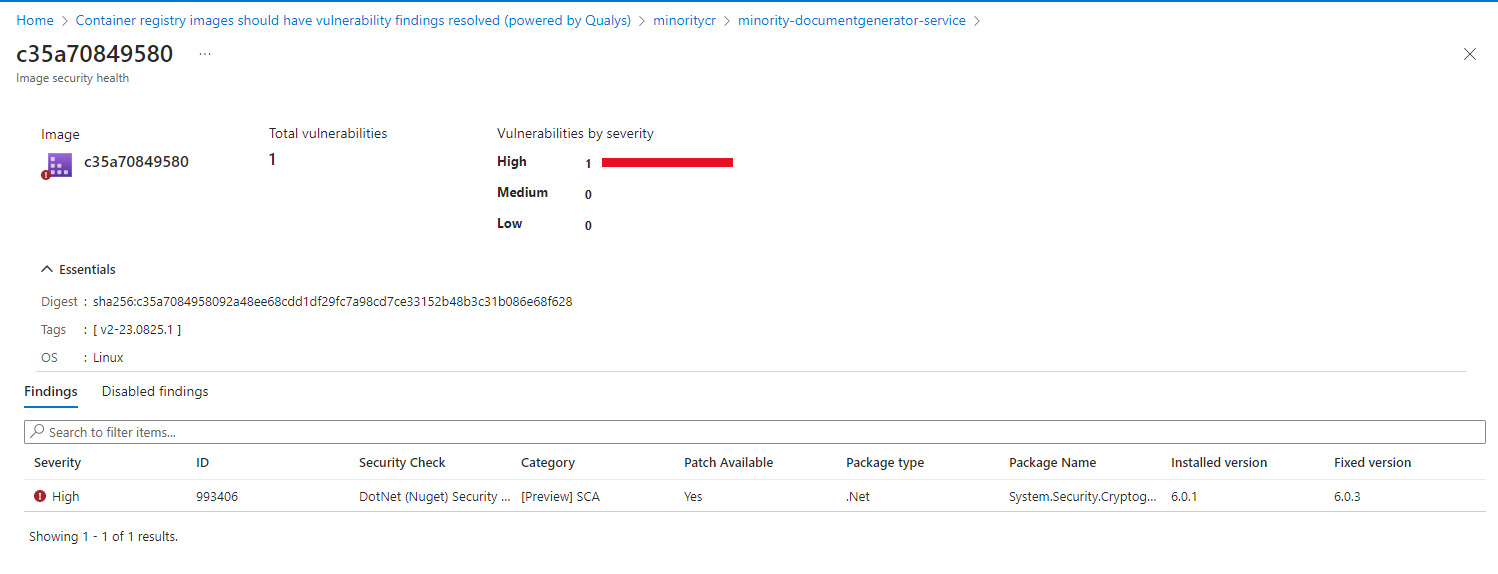
- Now you can find the repository and the latest image. When found, click on it.
- On this page the issue can be seen and often a suggested fix (i.e. update from 6.0.1 to 6.0.4). It is also possible to click on it to get further information
Transitive dependencies
Vulnerabilities might be in a transitive / indirect dependency not directly referenced by our code. For example, we have code that uses System.Security.Cryptography.Xml which in turn references System.Security.Cryptography.Pkcs. If there is an issue in System.Security.Cryptography.Pkcs then ideally the System.Security.Cryptography.Xml Nuget will be updated by its owners (in this case Microsoft), and updating System.Security.Cryptography.Xml will fix the issue. However, that might not always be the case. In those cases, we might have to take a direct dependency on the dependency (System.Security.Cryptography.Pkcs) to force our code to use a fixed version. Hopefully this will be a temporary solution until the dependency chain has been fixed by their owners.
Sometimes it can also be difficult to find what depends on what, why do we use a certain package. As a last solution, it's possible to manually look through your local Nuget package *.nuspec files in C:\Users\<username>\.nuget\packages to find dependencies of packages.
False positives
Sometimes Defender and Vanta might find a false positive. The actual DLL included in the image is already fixed, but some metadata of a bad version is still present. In those cases it's possible to mark it as false positive in Vanta (note that these have to be marked in Vanta, exclusions done in Microsoft Defender are not considered by Vanta.
In tricky cases, it can be helpful to inspect what is inside the docker container directly to be sure a non-vulnerable version is used. To do that:
> az acr login --name minoritycr(login to the acr)> docker pull minoritycr.azurecr.io/minority-documentgenerator-service:v2-23.0825.1(pull the image)
3> mkdir documentgenerator(make a folder for the files, there will be a lot of them)> cd documentgenerator> docker save minoritycr.azurecr.io/minority-documentgenerator-service:v2-23.0825.1 -o documentgenerator.tar(save the image.)> tar xvf .\documentgenerator.tar(unpack the image, step 1)mkdir tempcd temp> Get-ChildItem -Recurse -Filter layer.tar | ForEach-Object {tar -xvf $_.Fullname -C ".\temp\"}(unpack all the tar files in the image layers)- Done! Now you can search / inspect all the files in the image.