How to rollback (with ArgoCD)
There are multiple ways to rollback applications in ArgoCD but we will only present two here.
Rollback from ArgoCD interface (The fastest way)
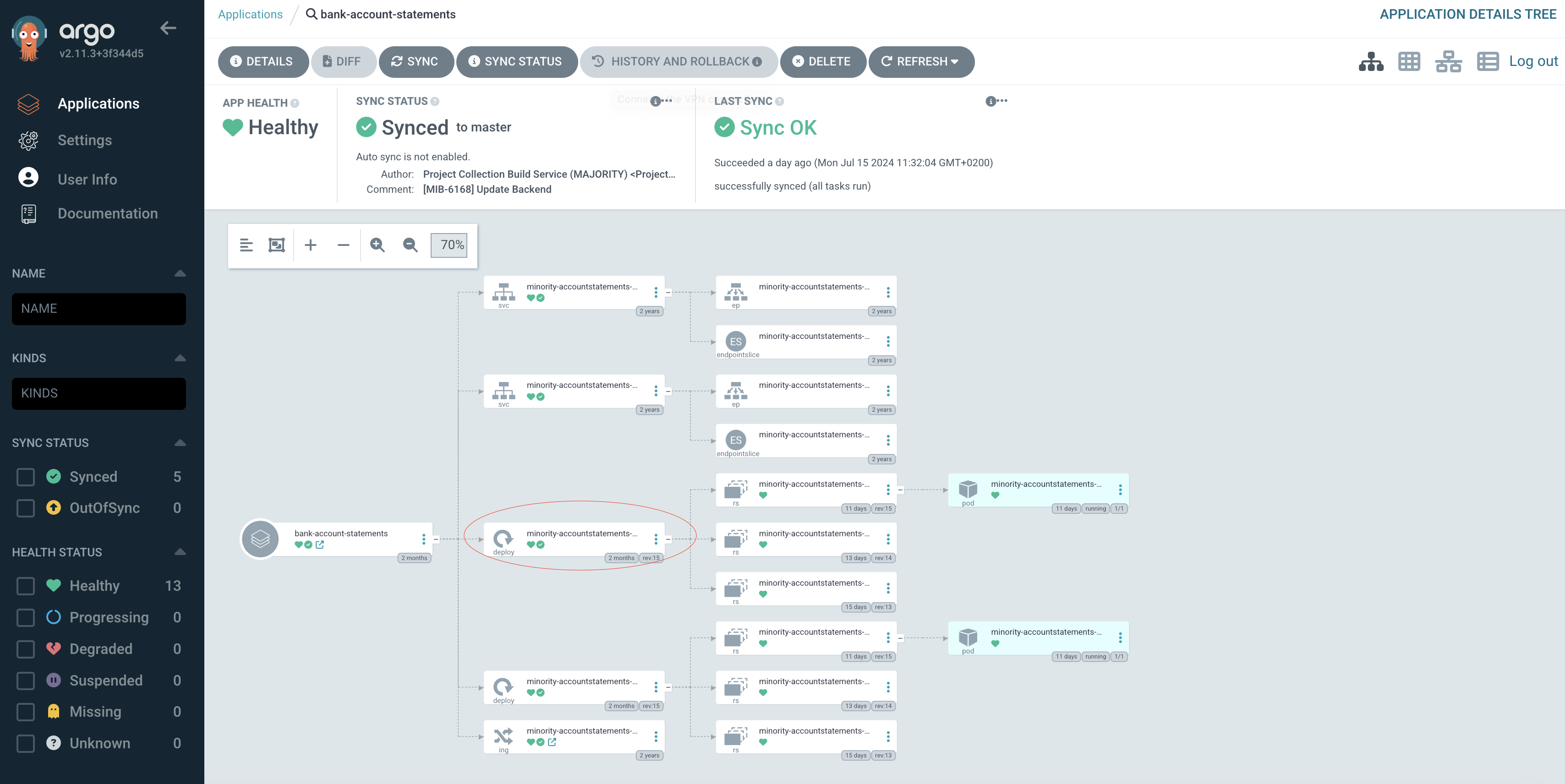
- Go to the target application and click on deployment
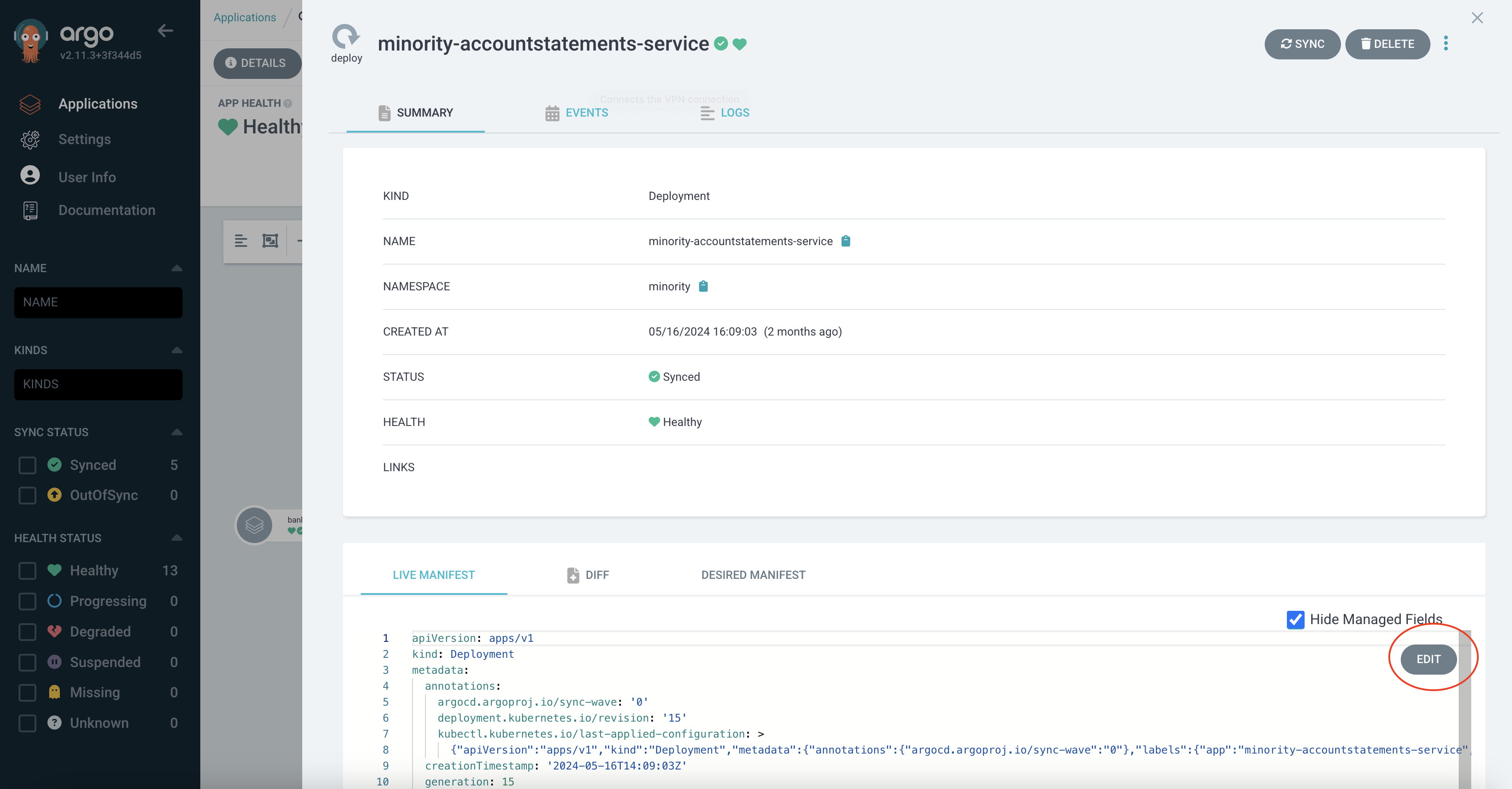
- Click on Edit
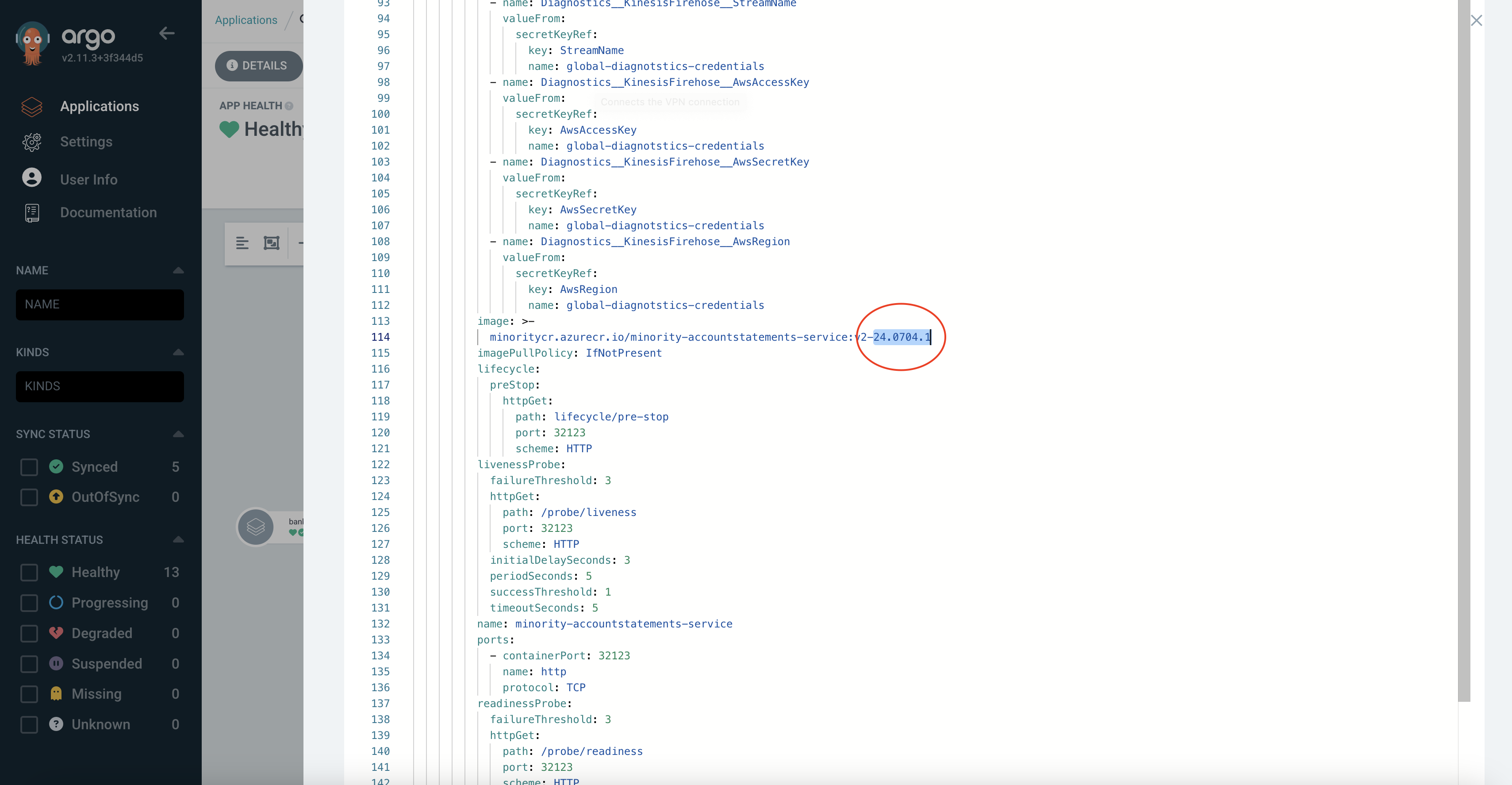
- Change image tag and click on save
WARNING:
- We must repeat those steps for all the sub parts of the application (API, service and jobs).
- This way to rollback is not clean as it does not respect the GitOps approach and will automatically be overwritten by new image tag set in bank-deployment.
- For jobs (cron) Rollback via pull request makes more sense as it should not be time sensitive
Rollback via pull requests (The right way!)
We need to go to bank-deployment repository as it is where Argo listens to which images it should sync to.
Let's take the example of Wallet area. It contains an API, a service and two jobs.
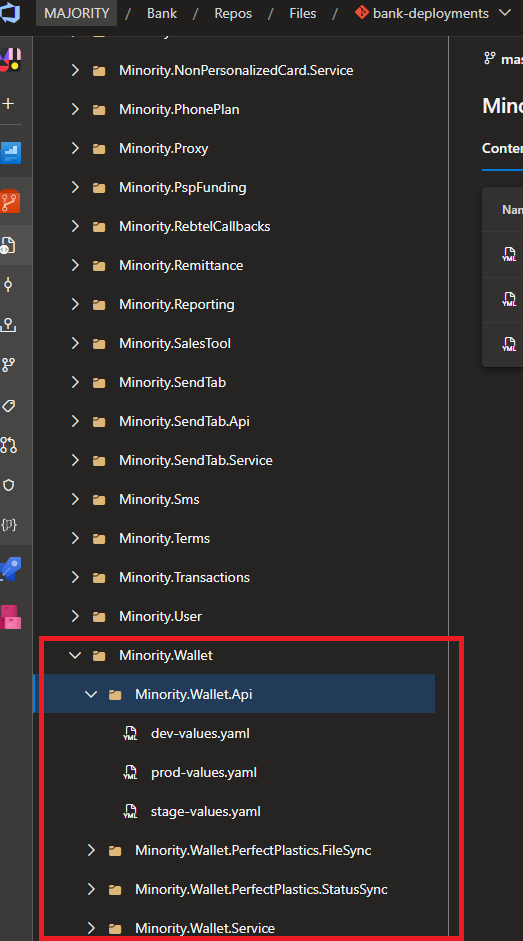
There are two main ways to rollback (in both cases someone is required to approve PRs):
Revert pull requests
For the targeted environment, we can click on the YAML file containing the values. Then:
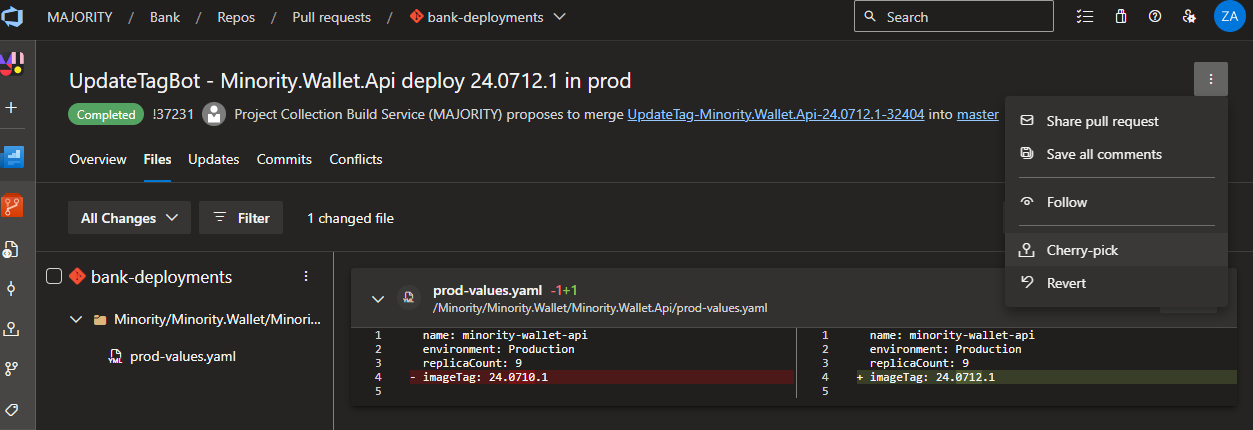
- Go to the latest PR
- Go to the top right corner button '...'
- Click on Revert
- it will create a new pull request you will have to create
- Once the PR is reviewed and approved by someone else, we can complete it
- Then we sync the application on ArgoCD
WARNING: We must repeat those steps for all the sub parts of the application (API, service and jobs).
Manually choose a specific previous tag
This way is similar to the first, but we can instead create one branch and update YAML files for all application sub parts at once.