Create and connect an Azure DevOps agent pool
Create and connect an Azure DevOps agent pool
Requirements
You will need permissions to create agent pool in Azure DevOps.
1. Create and configure the Azure DevOps agent pool in Azure DevOps
1.1 Create a new agent pool in Azure DevOps
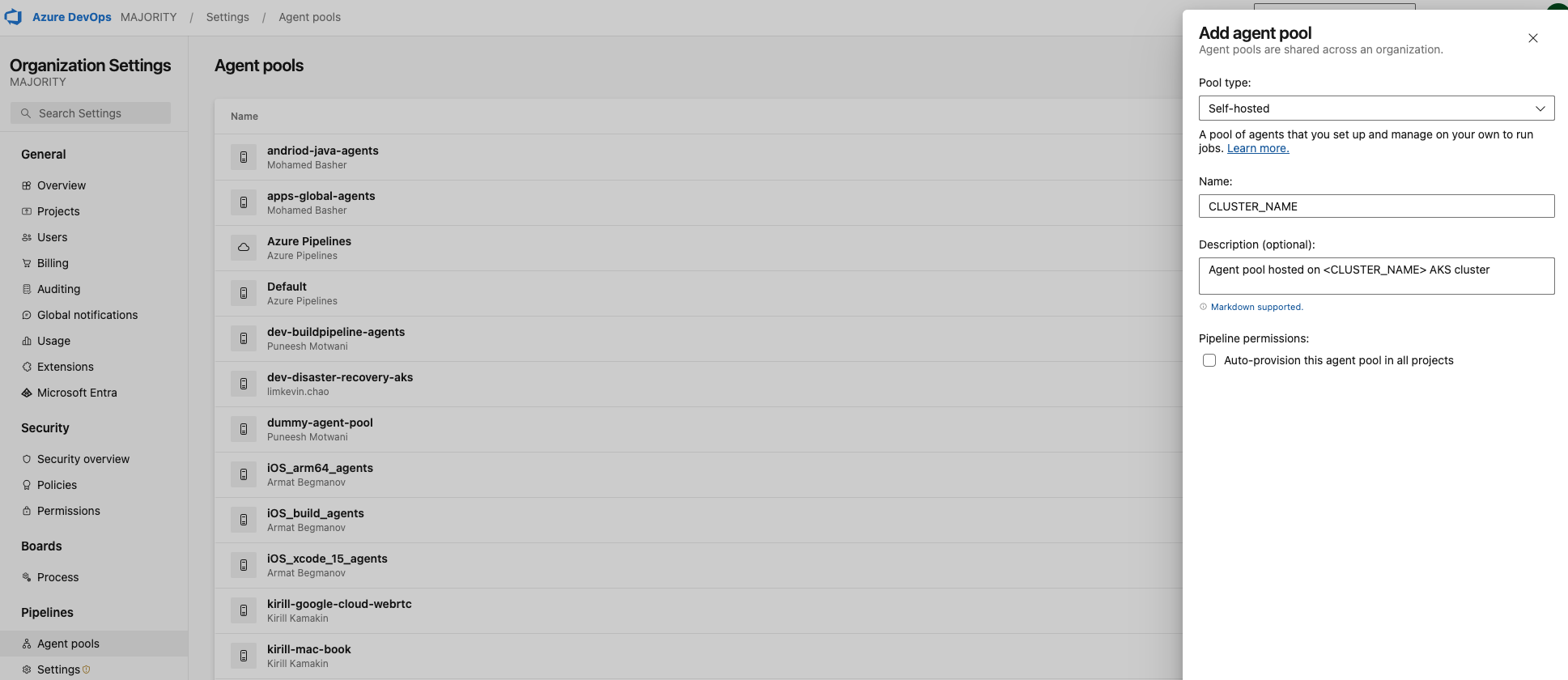
In Azure DevOps console go to the organization settings, select Agent pools then click on Add pool.
1.2 Create a new personal access token in Azure DevOps
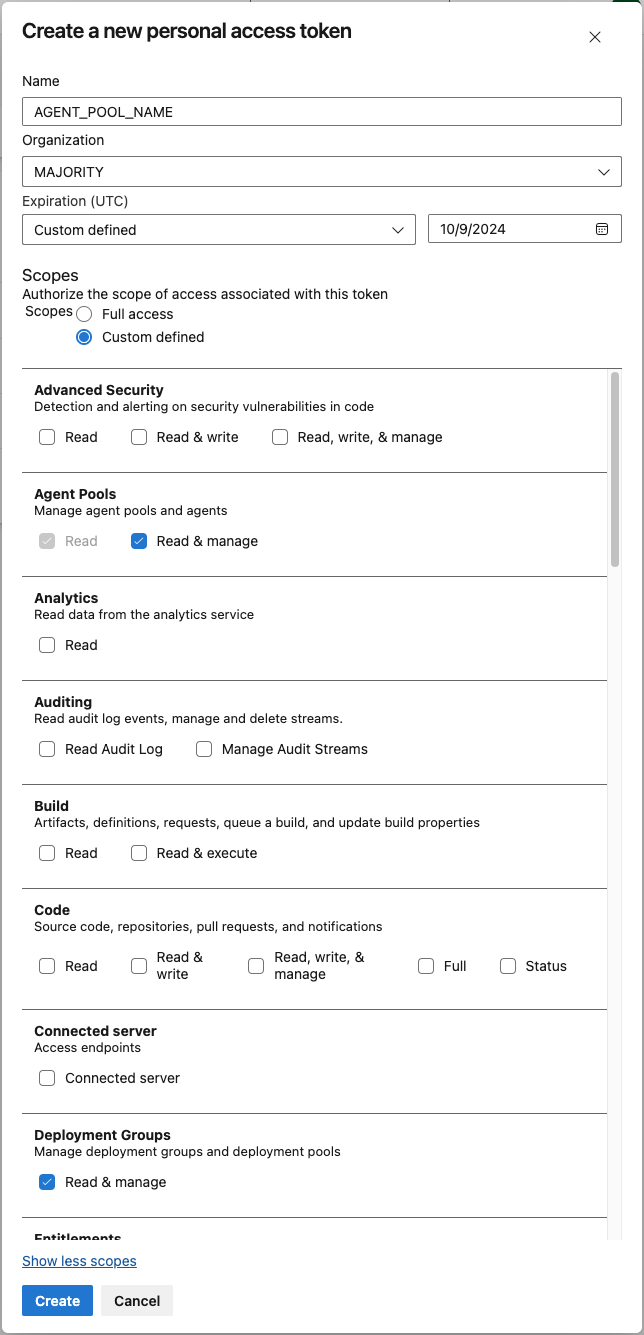
Create a personal access tokens from your user with the following permissions.
Agent Pools:
- Read & manage

Deployment Groups
- Read & manage
Screenshot
1.3 Copy the token in Azure cicd key vault.
2. Deploy the agent pool listener in your AKS cluster via OpenTofu
We are using KEDA autoscaling feature via the ScaledJob custom resource to handle agents in our kubernetes cluster. It will be configured to listen to Azure DevOps pipeline queue.
Note: KEDA is already deployed as a native feature we enabled in our AKS cluster.
We will create the scaledJob via OpenTofu
##  Commands to run

cd <path_to_folder>

tofu init -var-file dev.tfvars
tofu plan -var-file dev.tfvars
tofu apply -var-file dev.tfvars
You should be able to create a job using that new pool. You can verify the available agents in the pool settings (see screenshot).

Note 1: It is recommended to let the minimum number of agents set to 1 for the deployment as Azure DevOps will complain no agent exists otherwise and will not try to reach KEDA. Once you have one online, you can disable it (but not delete) and keep it as a placeholder.
3. How to use the new agent pool in your pipeline
In the previous block we already created an Azure DevOps agent pool using our cluster.
But we still need to enable
Azure
Azure DevOps supports authentication to Azure via the Azure Resource Manager service connection.
, Helm and Kubernetes tasks authentication
- AzureCLI
Agent interact with Azure via the Azure Resource Manager service connection.
Note: This service connection can be used by multiple clusters so you do not need to recreate it if there is already one per subscription.
\Azure Resource Manager

Authentication method: Workload Identity federation (automatic)
Scope level: Subscription
Subscription: <Subscription id>
Service connection name: <Subscription name>
Note: This service connection can be used by multiple clusters so you do not need to recreate it if there is already one per subscription.
How to create a new service connection
https://learn.microsoft.com/en-us/azure/devops/pipelines/library/connect-to-azure?view=azure-devops
Kubernetes cluster(s)
Azure DevOps now supports authentication to Kubernetes via the Azure Resource Manager service connection (See blog).
In that way you can reuse the same service connection used to authenticate to Azure to interact with your Kubernetes cluster(s).
Task examples
- HelmDeploy
- Kubernetes
- task: HelmDeploy@0
  inputs:
    connectionType: Azure Resource Manager
    azureSubscription: <Service Connection Name>
    azureResourceGroup: <AKS Resource Group Id>
    kubernetesCluster: <AKS Cluster Name>
    namespace: "${{ namespace }}-${{ env }}"
    command: upgrade
    chartType: FilePath
    chartPath: <Path to Helm Chart>
    releaseName: <Helm Release Name>
    overrideValues: <...>
    valueFile: <Path to Value File>
    ...

- task: Kubernetes@1
  inputs:
    connectionType: Azure Resource Manager
    azureSubscriptionEndpoint: <Service Connection Name>
    azureResourceGroup: <AKS Resource Group Id>
    kubernetesCluster:  <AKS Cluster Name>
    command: login