Cancelling Pending Remittance Transactions
This document outlines the process for cancelling remittance transactions that are stuck in a pending status by sending a cancellation request to the message bus.
Use Case
Cancelling remittance transactions that are stuck in a pending status.
Procedure
Manual
-
Identify the Transaction:
- An issue is received, reporting a problem with a remittance transaction.
- The issue contains a link to Hydra, which provides theTransaction IDandOwner Resource ID(orRemittance Transaction Idthat should be used below). -
Locate the Transaction in the Database:
- Find the transaction in the appropriate SQL database (e.g.,prod-mf-remittance-use2-sqlDbfor production. Be careful to chose appropriate database. For examplemfrelated to MoneyOut service).
- Use theRemittance Transaction Idfrom Hydra in the following SQL query to retrieve transaction details (Replace<REMITTANCE_TRANSACTION_ID>with the actualOwner IDobtained from Hydra):
SELECT [TransactionId], [HasCancellationRequested], [IsReRouted], [ProviderId], [TransactionStatus], [TransactionStatusReason], [ProviderReferenceId]
FROM [dbo].[Transaction]
WHERE TransactionId IN ('<REMITTANCE_TRANSACTION_ID>')
- Prepare the Event JSON:
- Use the
SendEventsToServiceBustool project located IN be-devtools -> Minority.Tools - Create a JSON file with the following format (the example below contains 2 events that will be send to service bus):
- Make sure you use correct envrionment's connection string for Service Bus.
- Use the
{"body":{"providerTransactionResponse":{"cashPickUpStatus":null,"deliveryTime":5,"endProviderReferenceId":null,"expirationDate":null,"externalTransactionId":"<OWNER_ID_1>","isReRouted":false,"pickUpCode":null,"providerId":<PROVIDER_ID_AS_INT_1>,"remittanceTransactionStatus":"Canceled","reRoutedReason":null,"resultCode":0,"statusReason":"Canceled","version":"V2","code":"0","message":"Canceled"}}}
{"body":{"providerTransactionResponse":{"cashPickUpStatus":null,"deliveryTime":5,"endProviderReferenceId":null,"expirationDate":null,"externalTransactionId":"<OWNER_ID_2>","isReRouted":false,"pickUpCode":null,"providerId":<PROVIDER_ID_AS_INT_1>,"remittanceTransactionStatus":"Canceled","reRoutedReason":null,"resultCode":0,"statusReason":"Canceled","version":"V2","code":"0","message":"Canceled"}}}
- Key points for the JSON file:
-
ExternalTransactionId: This field should contain the Owner Resource ID value obtained from Hydra.-
ProviderId: This field should contain the actual ProviderId value retrieved from the SQL query in Step 2.- The JSON can contain multiple events, one object per transaction.
For example:

Sample Event for Reversing a Transaction:
{"body":{"providerTransactionResponse":{"cashPickUpStatus":null,"deliveryTime":5,"endProviderReferenceId":"5548070606 <Get from Hydra>","expirationDate":null,"externalTransactionId":"<OWNER_Resource_ID>","isReRouted":false,"pickUpCode":null,"providerId":<PROVIDER_ID_AS_INT_1>,"remittanceTransactionStatus":"Reversed","reRoutedReason":null,"resultCode":0,"statusReason":"Reversed","version":"V2","code":"0","message":"ProviderReversed"}}}
-
Run the
SendEventsToServiceBusTool:- In the Program.cs file of the
SendEventsToServiceBusproject:- Set the correct file path to your prepared JSON file in the field
filePath. - Ensure the correct event type is specified in
StringEventSender:RemittanceTransactionCallbackEvent.
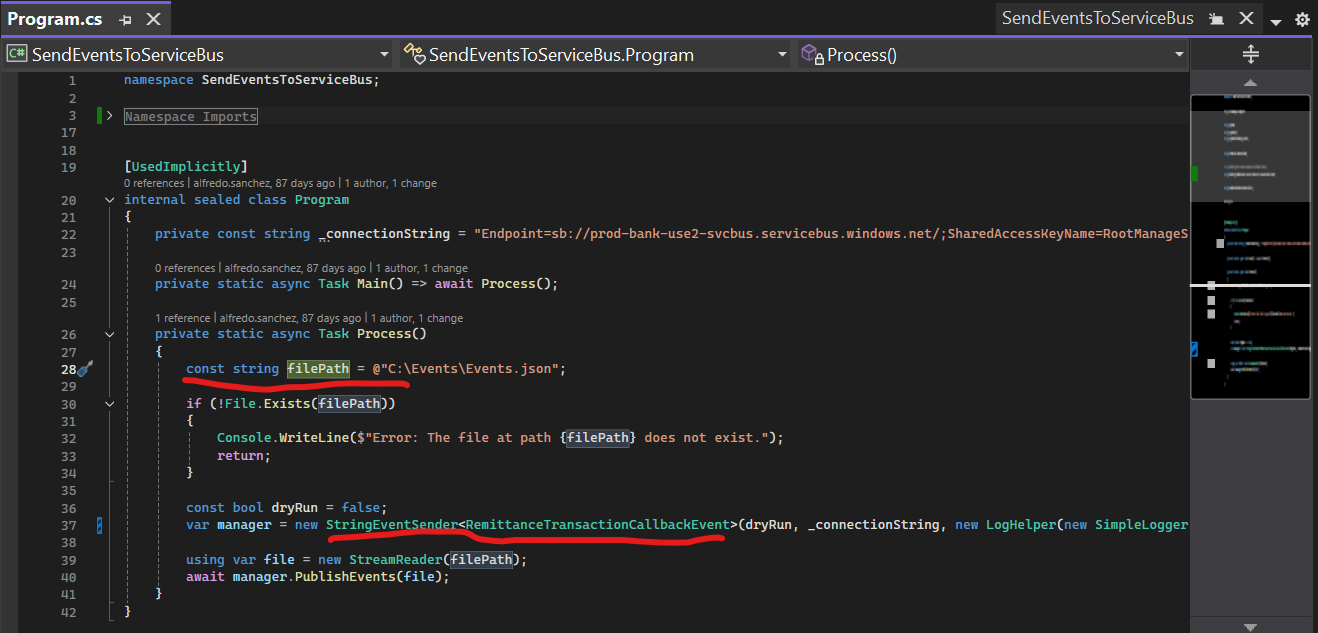
- Set the correct file path to your prepared JSON file in the field
- Run the program.
- Wait for the program to output
"Success", indicating that the cancellation request has been successfully sent to the message bus.
- In the Program.cs file of the
Partially automated
Script: Generate Events to Cancel Pending Remittance Transactions
The generate_events_to_cancel_pending_remittance_transactions.py script facilitates the generation of events required by the SendToServiceBus tool to initiate the cancellation of pending remittance transactions. It reads transaction IDs from a CSV file, retrieves relevant details from the Remittance and MF Remittance databases, and outputs a JSON file (events.json) formatted for the SendToServiceBus tool.
Prerequisites
Before running the script, ensure the following prerequisites are met:
- Azure CLI Login: You should be logged in to Azure. Follow the instructions here: How to authenticate to Microsoft products programmatically from your laptop
- MSSMS Configuration: Your SQL Server Management Studio (MSSMS) should be configured with a connection to the Production database server.
- Python Installation:
* Ensure you have Python installed. The latest version can be downloaded from: https://www.python.org/downloads/
* This script has been tested with Python version 3.13.3. - Python Libraries: Install the necessary Python libraries using pip like:
py -m pip install pyodbc azure-identity
Configuration
The script's behavior is controlled by several constants defined in the Configuration Constants section of the script. Please review and adjust these constants as needed before execution.
How to Use
- Prepare Input CSV: Create a CSV file (default name:
transactions_to_cancel.csv) containing the Transaction IDs of the transactions (the parent one or remittance) you want to cancel. Ensure the column containing the Transaction IDs is namedTransactionId(or adjust theTRANSACTION_ID_COLUMNconstant if it's different). - Review Configuration: Open the
generate_events_to_cancel_pending_remittance_transactions.pyscript and carefully review the constants in theConfiguration Constantssection. Adjust the file paths, database server details, database names, and theCANCELLATION_STATUSif necessary. - Run the Script: Execute the script from your terminal using Python:
py generate_events_to_cancel_pending_remittance_transactions.py - Output: Upon successful execution, the script will generate a file named
events.jsonin the same directory where the script is run. This file contains the events formatted for theSendToServiceBustool. - Send Events: The generated
events.jsonfile should then be used as input for theSendToServiceBustool (which needs to be run manually) to send the cancellation requests to the Service Bus.