CDE-Card-Data-Diagram-PlanutUML-Setup
- Install VS Code
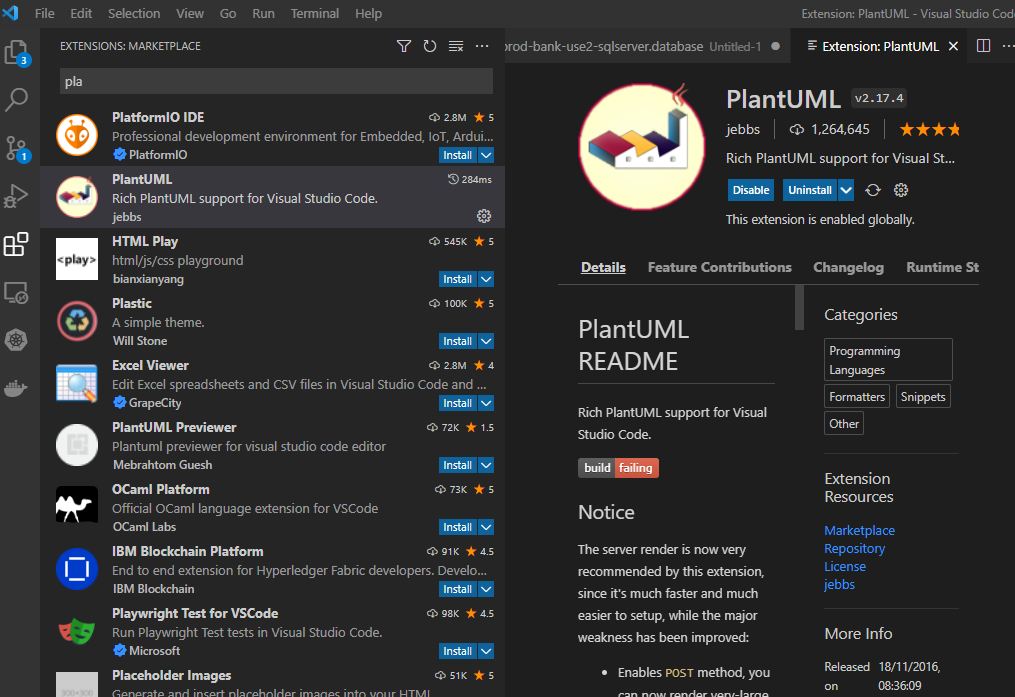
- In Extension search "PlantUML". Install the latest PlantUML
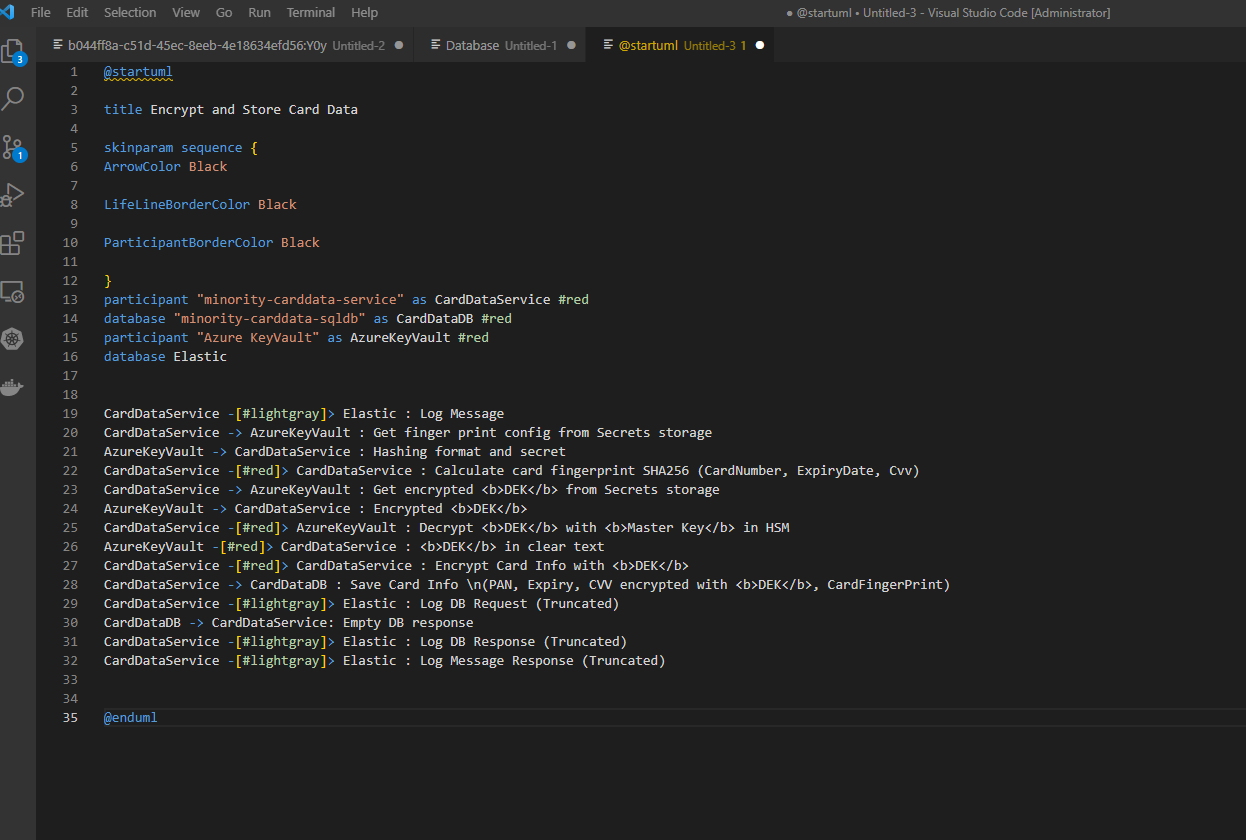
- Open new tab in VS Code
- Get the PlantUML code from our card data repo and past it here
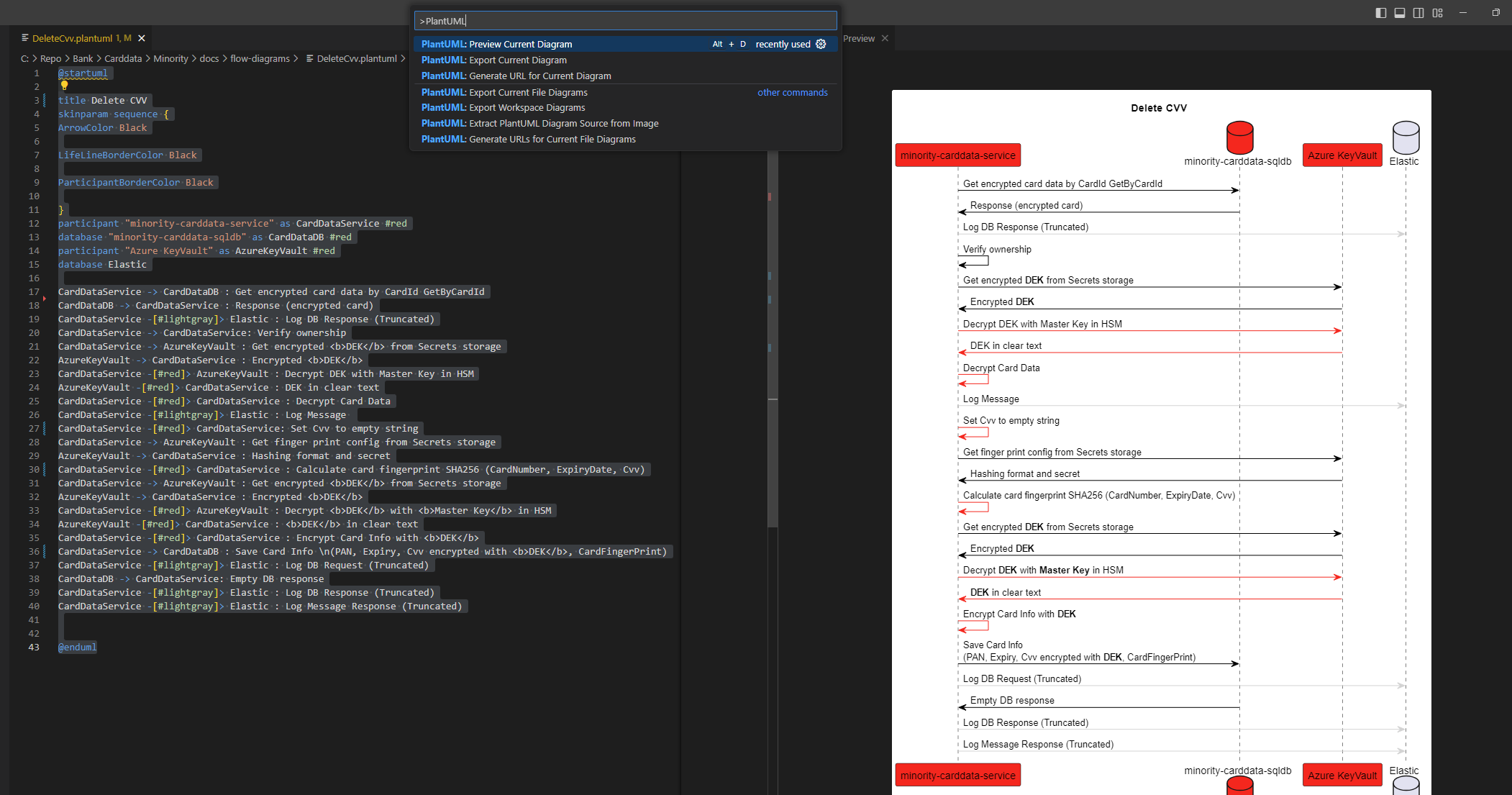
- Press Ctrl+Shift+P will open search box and type PlantUML
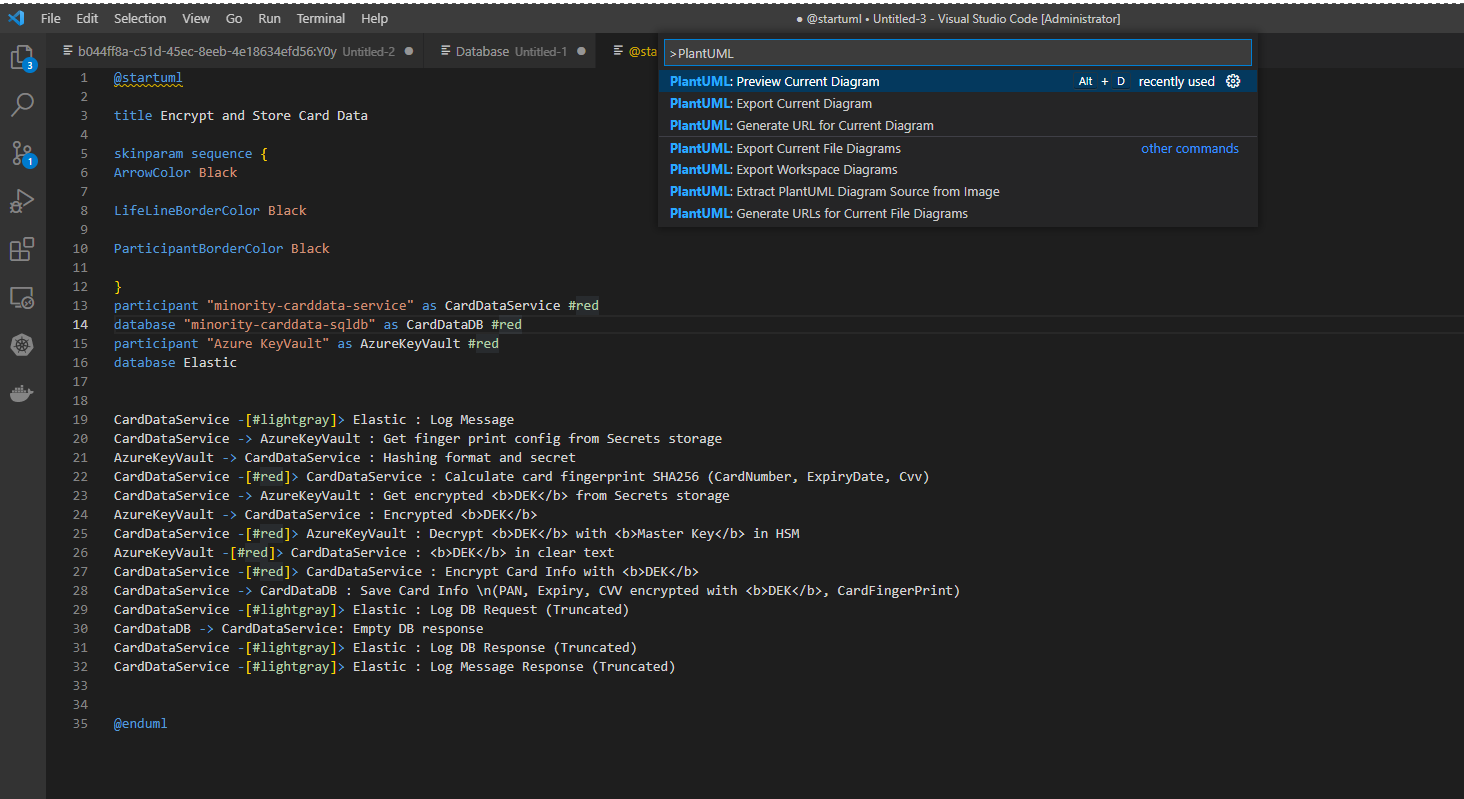
- Press "Preview Current Diagram"
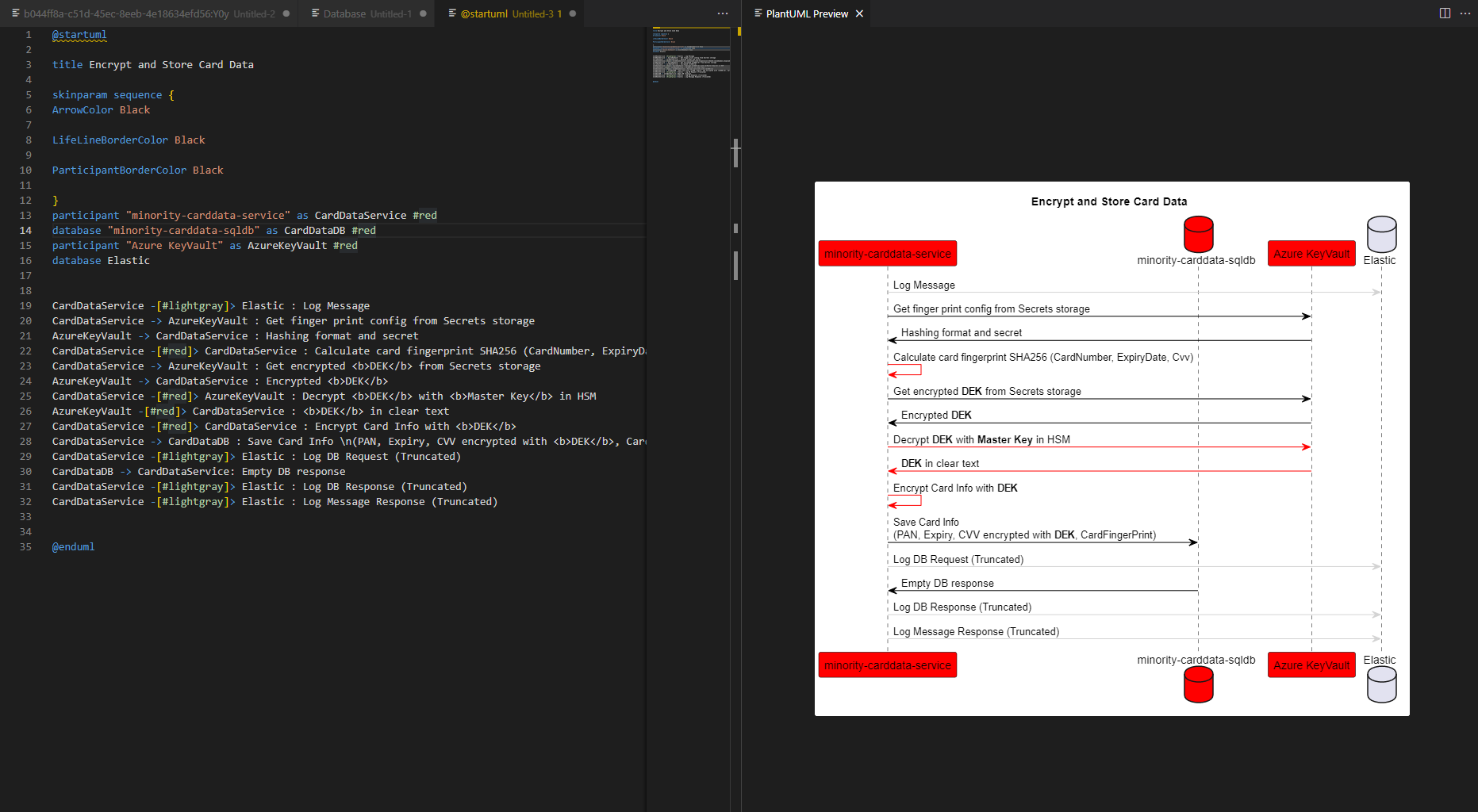
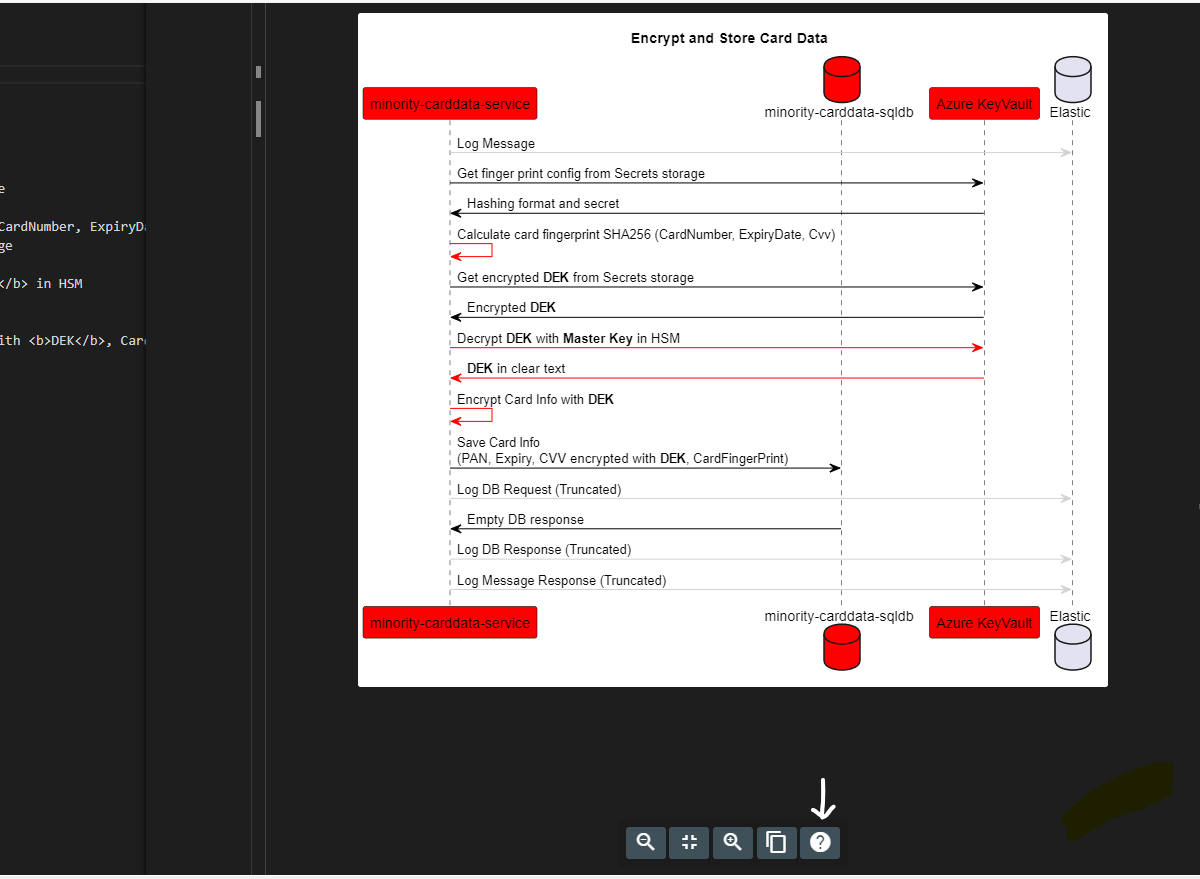
- Now Can preview the Diagram
- In Left side if we change anything it will automatically update the Preview
- In bottom of the Preview Screen there is symbol "?" Press that it will show how to use Previewer
- Export the Updated Diagram
Press Ctrl+Shift+P will open search box and type PlantUML
Select "Export Current Diagram"
Select png and svg (one by one)
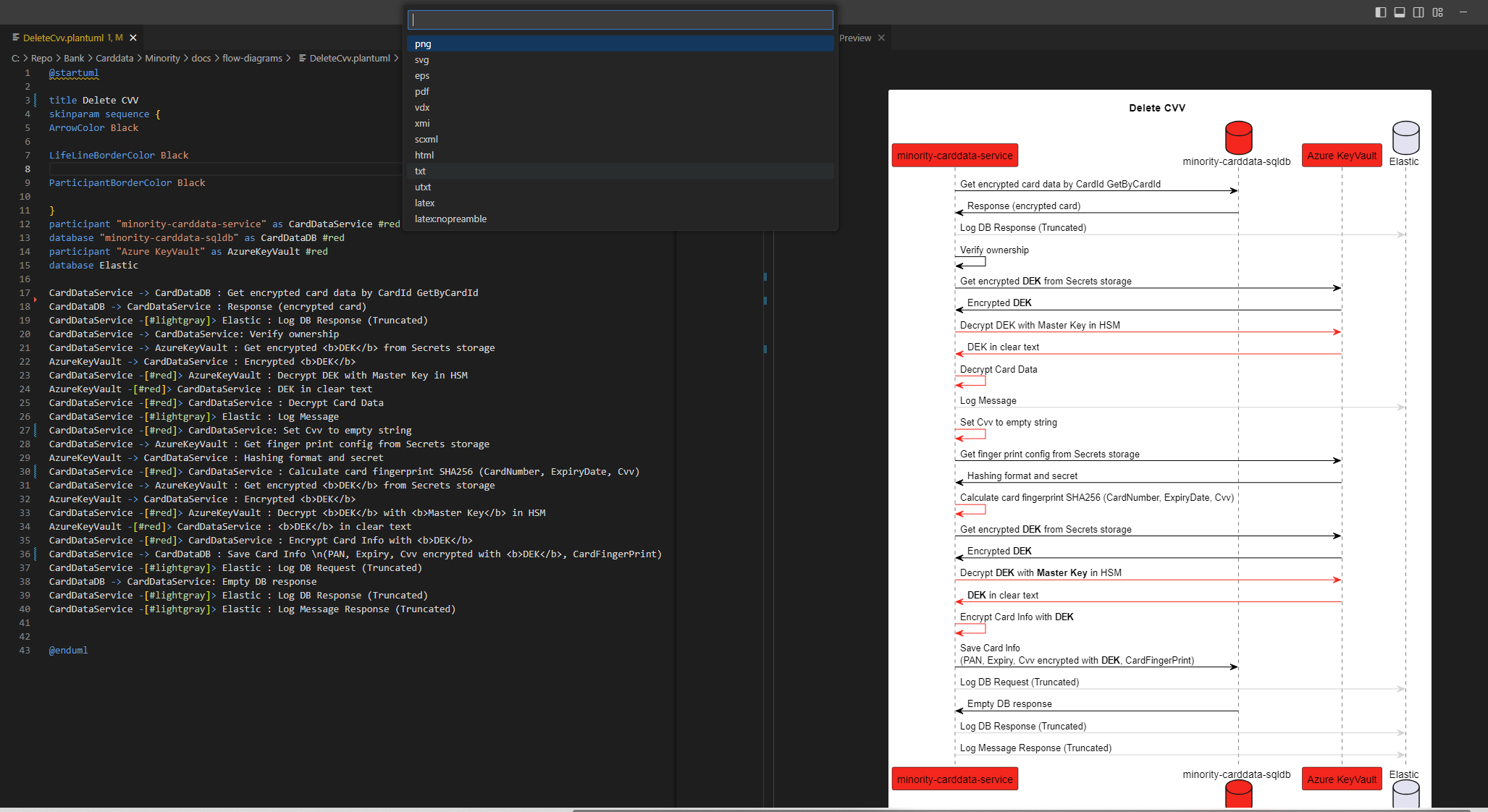
It will automatically create the folder in the file path where plantUML file located and export those png and svg.
This the file need to upload in the Repo